
User activity logged by Securly Filter is available to view in your Securly account. The "Activities" menu displays all blocked and accessed sites, searches, videos, etc. to help admins understand how students are utilizing their devices and time online, identify time sinks, understand search patterns, etc. Reports are also available to delegated admins for their specific OUs and help them keep track of their activity at all times.
To view user activity reports:
- Log in to Securly Filter.
- Navigate to the "Activities" tab > All Activities > Blocked
-
The blocked activity reports will display all recent activity, sites visited, and keywords searched.* To view accessed activity, select 'Allowed' from the dropdown.
-
You can filter the results by category, policy, source type, location, and date to get as granular a view of the reports as required. Note that you can select multiple categories. This should save time, as you can create a single report with multiple categories you want to monitor, rather than needing to create multiple reports to monitor multiple categories.
-
Clicking on the three-dot icon beside any accessed activity will reveal the "Block Activity" option. You can click on this to block the site if necessary. If you use a policy search filter, it will add the site to the global denial or at the policy level. Note that this differs from the blocked/allowed dropdown at the top of the page, which determines which results are displayed.
-
Similar to how you block sites, you can also allow any blocked sites here by clicking the ‘allow’ button from the three-dot menu. Note that the ‘allow’ button will not be displayed for ‘Default policy’ users.
Note that the website will only allow for the policy for which you have set the filter. If you have applied the 'All Policies' filter and blocked/allowed a site, it will be added to the Global Allow/Deny list.
- You can filter activity based on a source type by using the 'All source types' drop-down filter.
- The "Sites" filter will list all the websites visited.
- The "Videos" filter will list all YouTube videos that the user searched for and watched.
- The "Search" filter lists the keywords that the student searched for.
- The "Social Posts" filter lists activity from social media platforms like Facebook, Twitter, and Google+.
- For details about each entry, you can click on the three-dot menu next to each activity and click on "Show More Info." to the display category under which it was blocked and the public IP address that attempted to access it.
-
You can also download user reports by clicking on "Reports" action buttons. For details, click here.
*Note that YouTube videos and Social Media activity are not displayed under the blocked activity log. If a video is blocked, it will not be displayed to the user based on the YouTube settings, while a safe search on YouTube will further display only safe results. So no blocked videos have been reported.
Securly Classroom activities
If your school has also uses Securly Classroom and has the integration enabled from Classroom's Settings menu, you'll see the sites that have pushed to students by teachers during a class session in Filter's Activity Report table. You can also use the gear icon to display the Class and Teacher columns associated with the activity.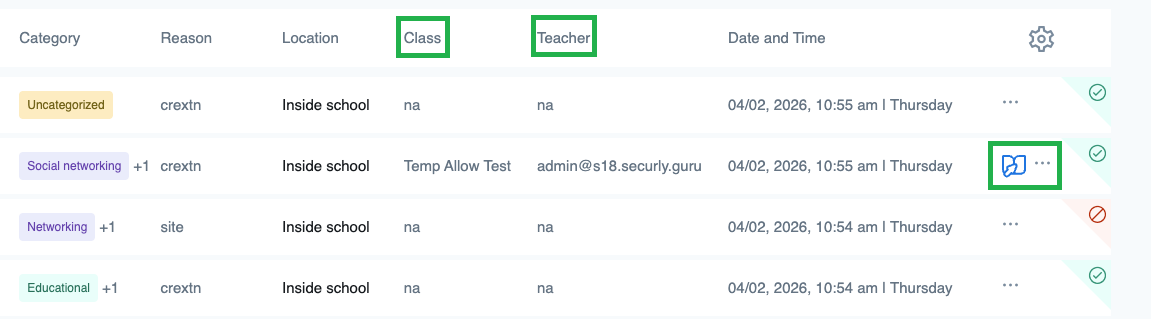
You can also hover over the Securly Classroom icon to view the email ID of the teacher who pushed the site and the name of class..png)
Note: The integration allows teachers to push blocked sites temporarily only for the duration of the class session.
For more details, refer to the "How does the Securly Classroom and Filter integration work?" article.

Comments
Article is closed for comments.