
PageScan is the AI classification engine in Securly Filter. When a student visits a website that isn't in Securly's category database, PageScan analyzes the site and assigns it a category. Your filtering policies then allow or block the site based on that category.
Every site PageScan categorizes is added to Securly Filter's shared database, so a site found in one district is categorized for every district using Securly Filter, over 8.6 million students.
How PageScan categorizes a website
PageScan runs automatically in the background as students browse the web.
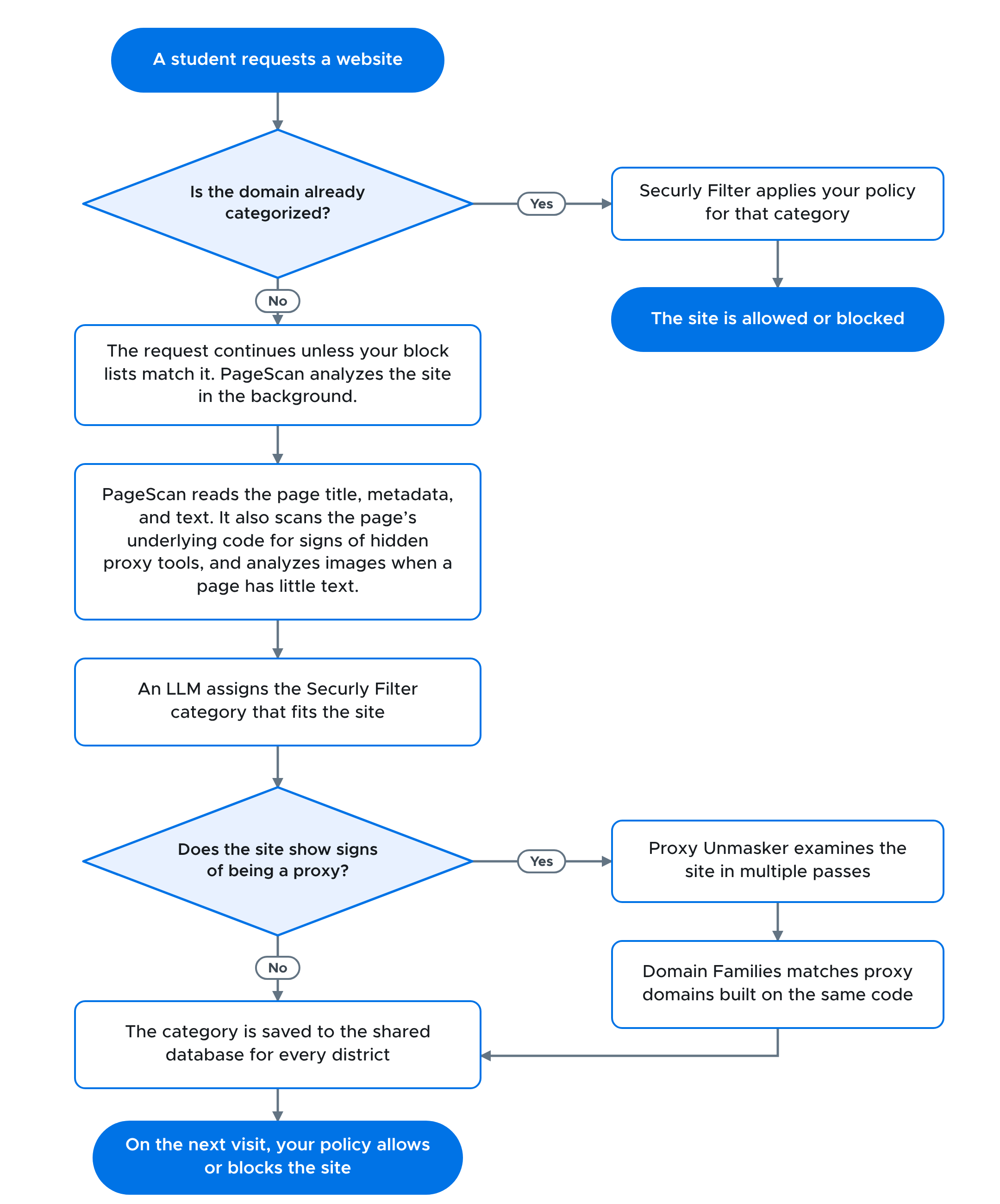
- A student requests a website. Securly Filter checks the domain against its category database and your Allow/Block lists.
- Known sites are filtered right away. If the domain already has a category, Securly Filter applies your policy for that category and allows or blocks the site.
- New, unknown sites go to PageScan. If the domain has no category and nothing on your block lists matches it, PageScan analyzes the site in the background.
- PageScan reads the page's title, metadata, text, and underlying code. For pages with little text, it also analyzes images and text inside images. A large language model (LLM) reviews these signals and picks the Securly Filter category that fits the site.
- Suspicious sites get a closer look. If a site is suspected of being a proxy, Proxy Unmasker checks it further, separately. See Proxy and circumvention detection below.
- The category is saved to the shared database. On the next visit from any student in any district, Securly Filter enforces that district's policy for the new category.
The flowchart below shows this process.
Proxy and circumvention detection
Students use proxy sites to get around content filters. Many current proxies are built to look like educational sites, such as a math practice page that opens a game or chat app after a key combination is pressed. A scanner that only reads the surface of the page would label these sites as educational. Proxy developers can also spin up new domains faster than anyone can add them to a block list.
Securly Filter handles proxies in three layers:
- PageScan categorizes new domains when students first visit them, which catches most newly created proxy domains.
- Proxy Unmasker examines suspicious sites in multiple passes, the way a student would use them, to reveal proxies hidden behind educational content.
- Domain Families group proxies built on the same code. When Proxy Unmasker identifies one member of a family, Securly Filter can block related domains built on the same foundation.
When Securly identifies a proxy, it's categorized as Proxy/Circumvention in the shared database. You don't need to update a list or review a queue of suspicious domains.
Request a category change
If you think a site has the wrong category, you can ask Securly to change it. PageScan reviews most requests automatically. Requests that need human judgment go to the Securly Support team, and you can usually check the result after one business day.
To request a category change:
- In Securly Filter, go to Policy Editor and select a policy.
- Select Allow/Block, then Category Lookup.
- Search for the domain.
- Select Request category change.
- Choose the category you think fits, and add any context that helps explain the request.
Request a live category update
With live category updates, a student who reaches a site blocked as uncategorized can send it to PageScan from the block page. The site stays blocked while PageScan reviews it. The student can try the site again once it's categorized.
To turn on live category updates:
- Email support@securly.com and ask Support to enable the feature for your account.
- In Securly Filter, go to Policy Editor > Global Settings.
- Turn on Request categorization using PageScan.

Comments
Please sign in to leave a comment.