
When using Classroom, certain functions like Site Lock and Push URL are made much easier through the use of web links. You can think of these like bookmarks in your web browser - a list sites that you can use within Classroom without having to remember the specific URLs. If you have a set of sites that you use frequently in your class sessions, or even just more than once, it's helpful to add them as web links for ease of use.
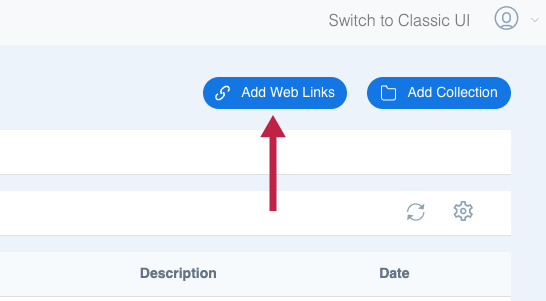
Web links are managed in the Web links menu. To create a web link, go to that menu and use the Add Web Links button at the top right of your screen.
In the sidebar that appears, enter the following information:
| Field | Description |
|---|---|
| Name | The name of the site, or your own descriptive title. |
| Site | The URL of the web link. |
| Description | A short description (optional). |
| Dependencies | Some web sites won't work properly when used with Site Lock if they pull resources (graphics, page elements, HTML style sheets, etc.) from other sites because Site Lock blocks all sites except the specific URL. You can find more information on this topic here. |
If you are creating a web link to a common site, it's worth it to check out the list of predefined web links. These web links are templates that are set up with all the necessary dependencies, in case the site pulls content from other sources. For more information on this topic, see the Predefined Web Links article.

Comments
Please sign in to leave a comment.